
How to connect Rank Tracker to Google Data Studio
The Rank Tracker connector is an official Sitechecker connector that exports your keyword ranking data into Google Data Studio (Looker Studio).
It lets you build custom reports, combine Rank Tracker data with other sources, and design branded visualizations that update from your live Sitechecker data.
It is built for SEO teams and agencies that report to clients. Instead of exporting spreadsheets by hand, you connect once and your ranking dashboards refresh on their own.
Note! Feature to export Rank Tracker data to Data Studio is available only for users on Standard, Premium or Enterprise plan.
How to connect Rank Tracker to Google Data Studio
Follow these steps in order.
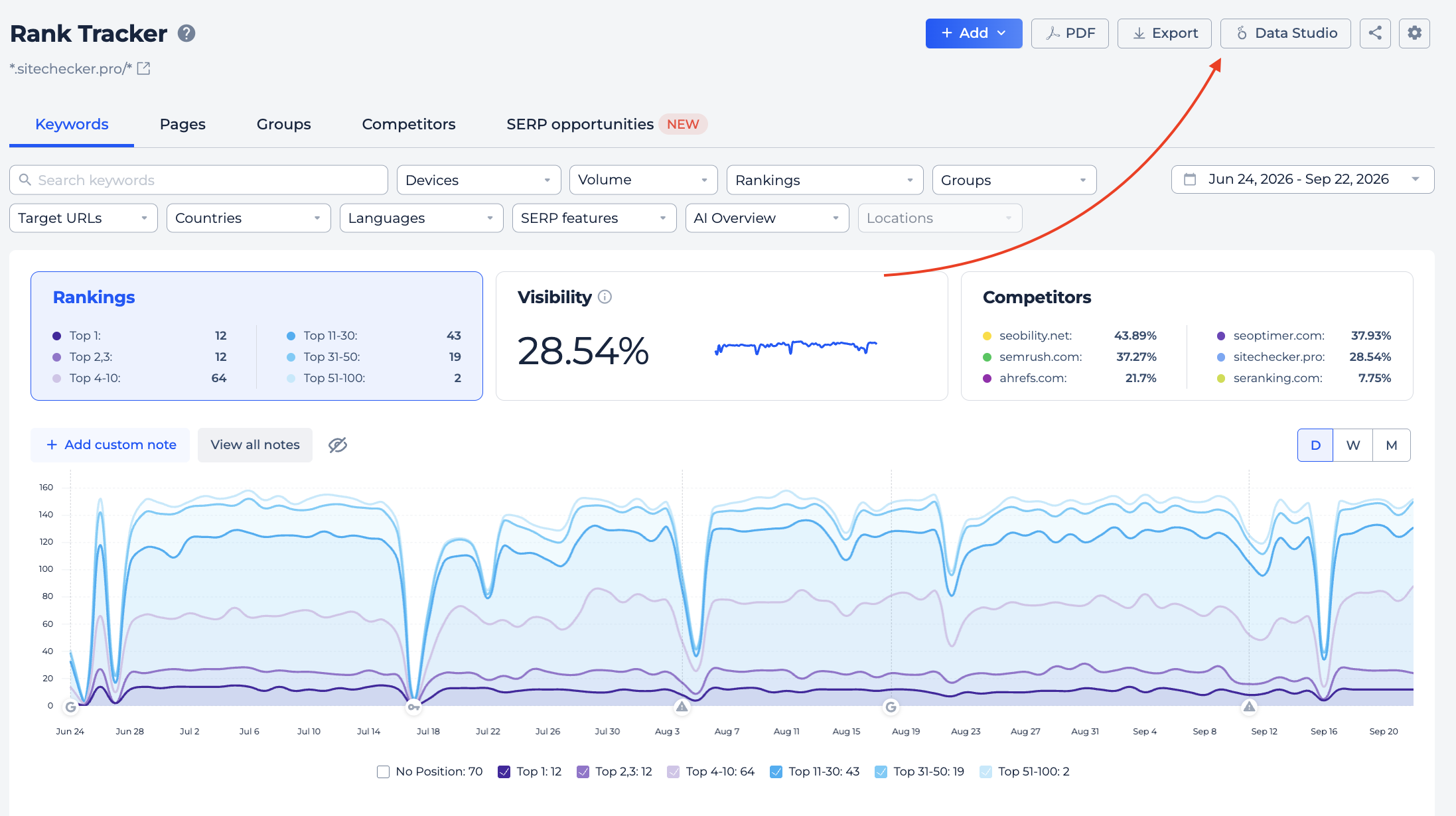
1. Go to Rank Tracker in Sitechecker and click the Data Studio button.
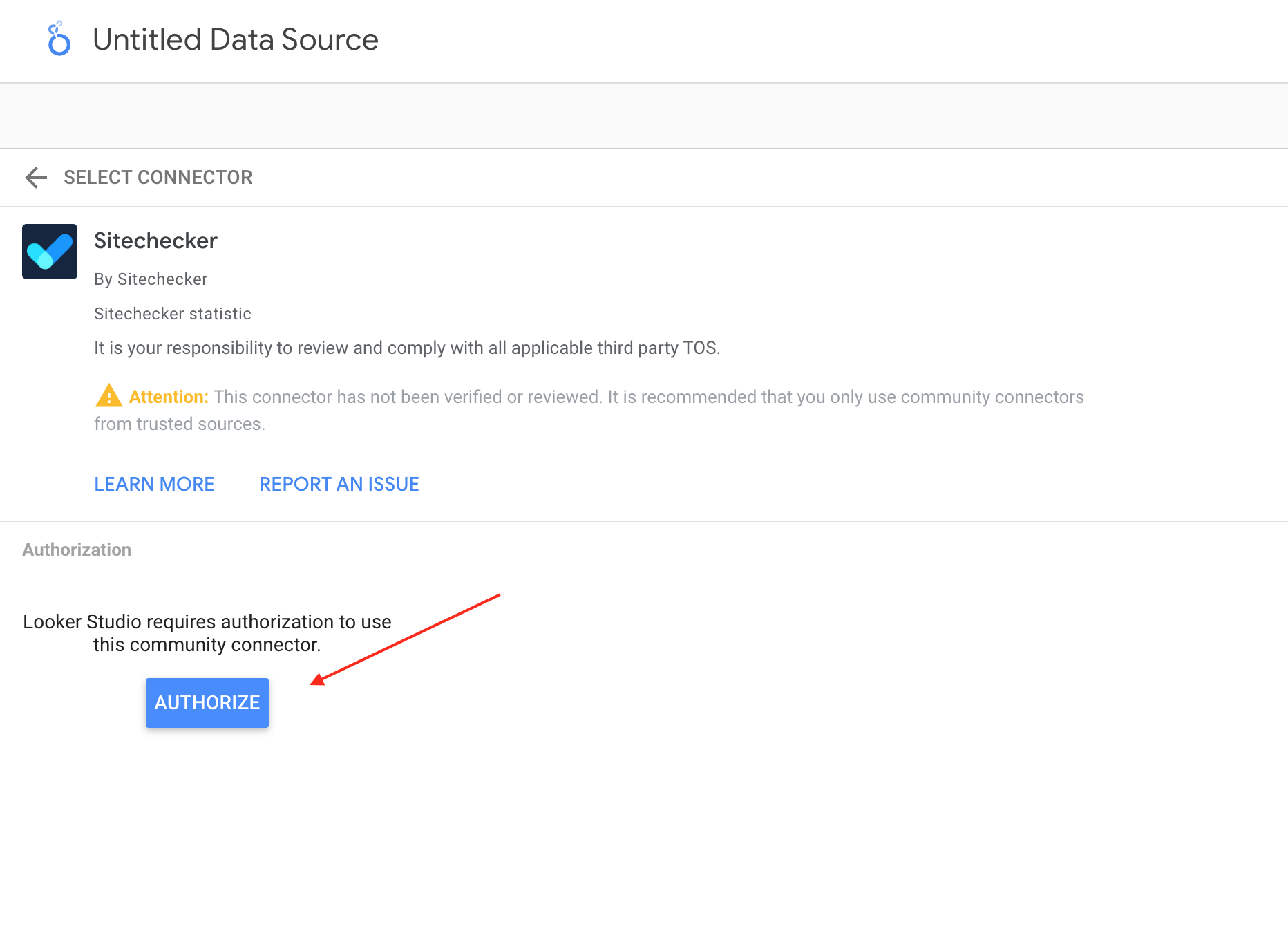
2. Authorize the connector. Click Authorize on the connector page.
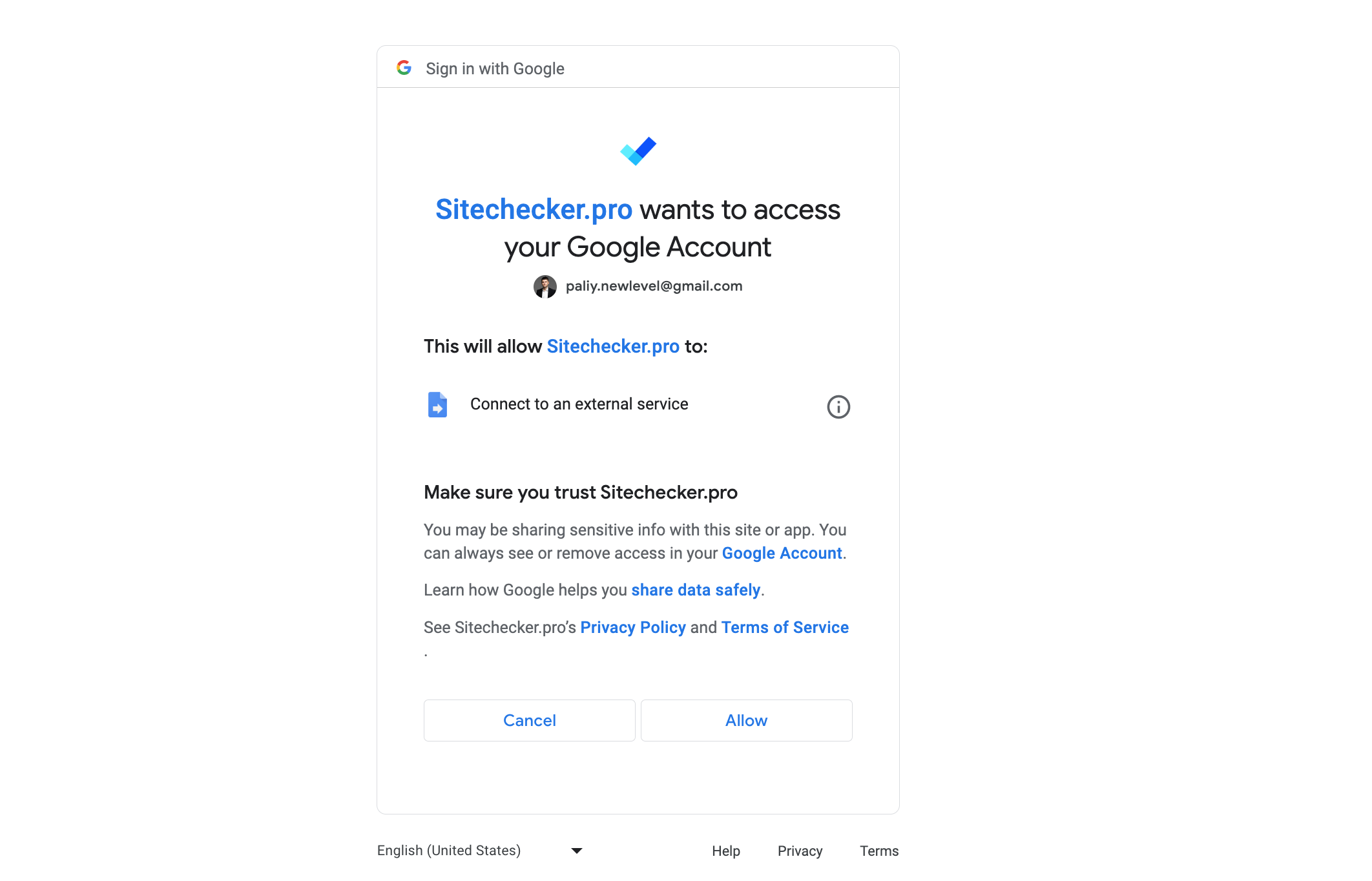
3. Grant Google permissions. Allow Sitechecker to connect to your Google account.
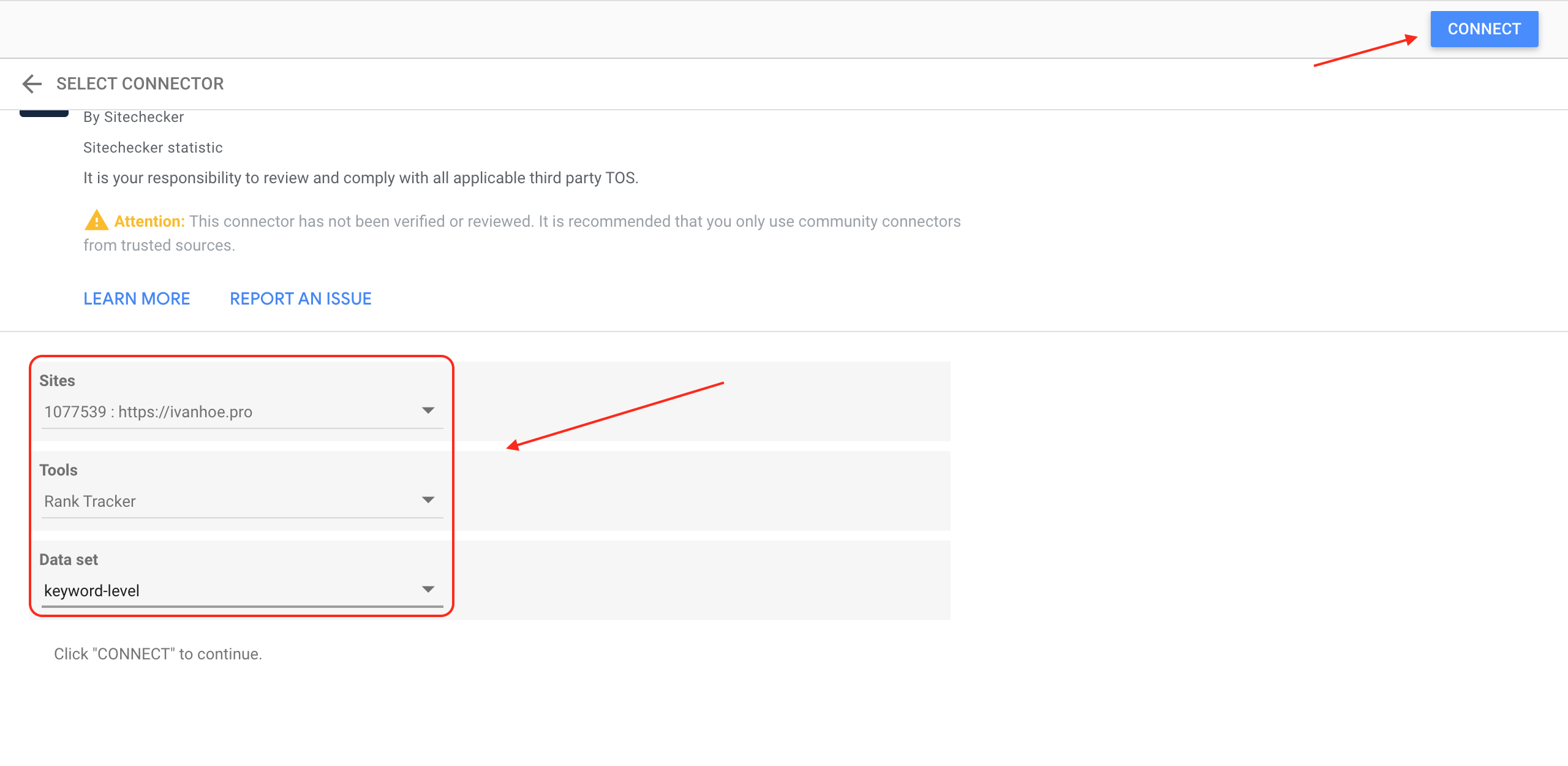
4. Select your data. Choose your project and the dataset you want, then click Connect.
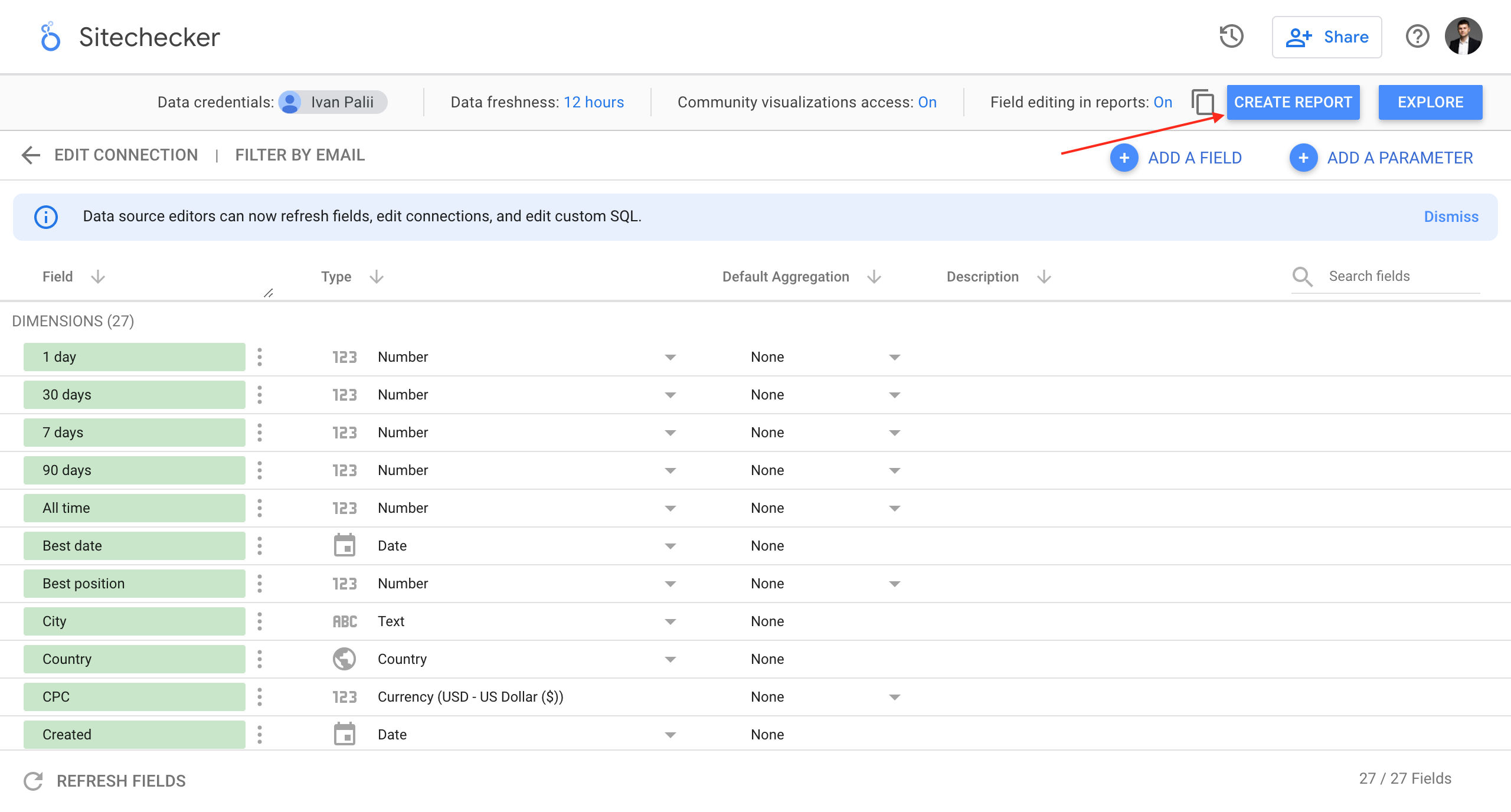
5. Create the report. Click Create Report.
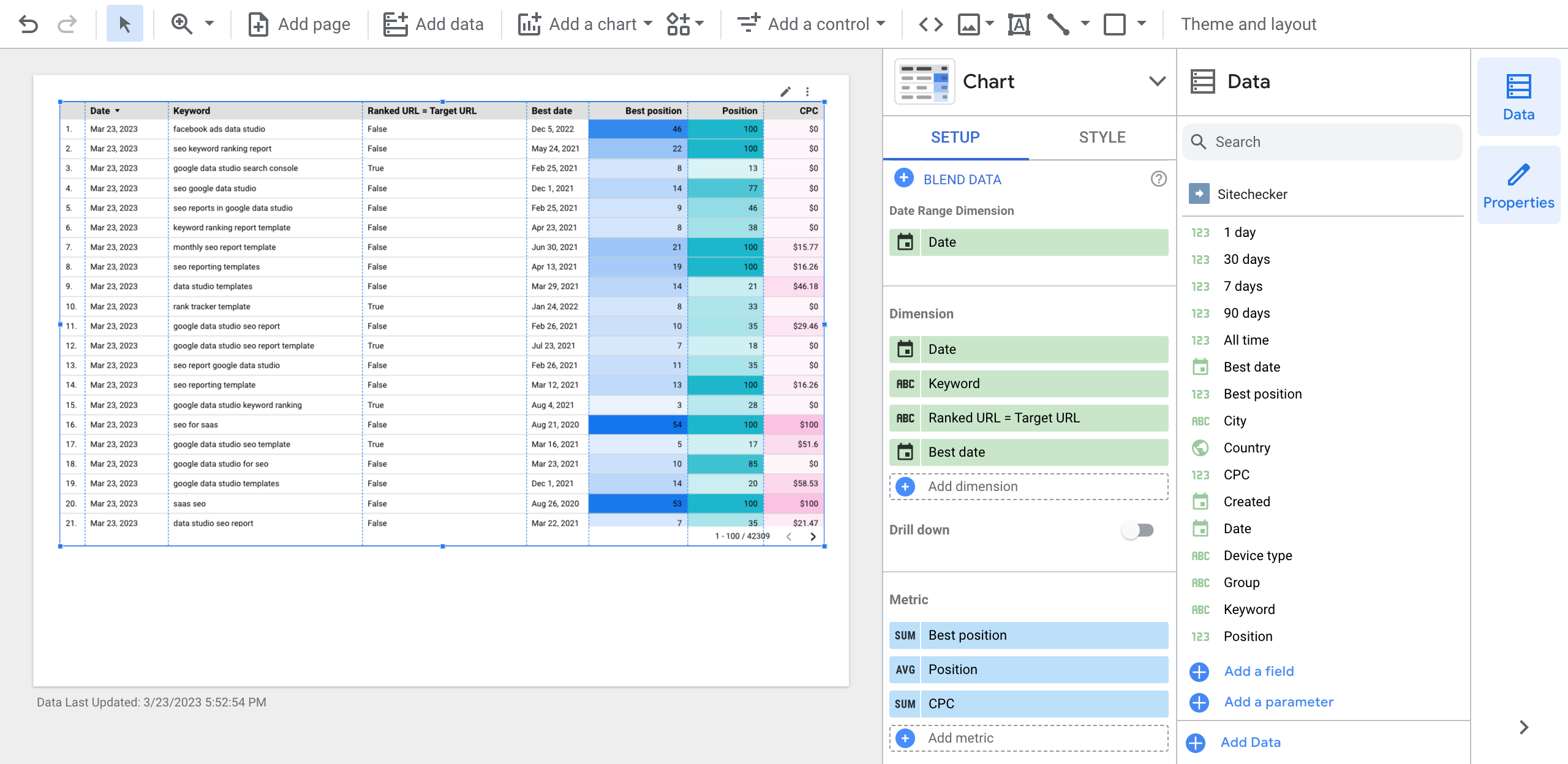
6. Build your dashboard. Add tables and charts, apply formatting, and merge other data sources as needed.
Site-level or keyword-level data
The connector gives you two datasets, and you pick one when you connect:
Site-level data covers your project as a whole, so it suits overview widgets like total visibility and ranking distribution.
Keyword-level data covers each tracked keyword, so it suits detailed tables of positions, volume, and landing pages. You can connect each dataset as its own source and use both in the same report.
What you can build
The connector turns raw rankings into client-ready reporting.
Agencies use it to build white-label dashboards under their own brand, so clients see rankings without any third-party tool in view. Teams merge Rank Tracker data with Search Console, Analytics, or ad data in one report, so search performance sits next to traffic and spend.
Because the data is live, a dashboard built once refreshes on schedule, which removes the monthly export and reformat work.
Troubleshooting
If the connector does not appear, check that your plan is Standard, Premium, or Enterprise, since the connector is not available on lower plans. If authorization fails, make sure you are signed in to the correct Google account and that you completed both authorization steps.
If no data shows in the report, confirm you selected a project that has tracked keywords and that you picked a dataset before clicking Connect.
FAQ
How do I connect Rank Tracker to Google Data Studio? Open Rank Tracker, click the Data Studio button, authorize Sitechecker to access your Google account, select your project and dataset, click Connect, then Create Report.
Do I need a paid plan? Yes. The Rank Tracker connector is available on the Standard, Premium, and Enterprise plans. You also need a free Google account for Looker Studio.
Is Google Data Studio the same as Looker Studio? Yes. Google renamed Data Studio to Looker Studio in 2022. The connector works with both names.
What data can I export? Two datasets: site-level data for project overviews, and keyword-level data for per-keyword positions, volume, and landing pages.
Can I combine Rank Tracker data with other sources? Yes. Looker Studio lets you merge the Rank Tracker connector with sources like Search Console and Google Analytics in one report.
Does the report update automatically? Yes. The connector reads live Sitechecker data, so your dashboard refreshes without manual exports.
Can agencies white label the reports? Yes. You control the design in Looker Studio, so you can brand the dashboard and share it with clients without exposing third-party tools.
Need help?
Questions about the Rank Tracker connector? Reach us at support@sitechecker.pro. We will be glad to help you out.