
How to use Pages tab in Rank Tracker
The Pages tab in Sitechecker Rank Tracker groups your tracked keywords by the page of your site that ranks for them.
It shows how visible each page is in search, how many keywords it ranks for, and how its visibility changes over time. This helps you see which pages bring most of your results and which need work.

What you can do with the Pages tab
- See the visibility of each page and how it changed.
- Find the pages that rank for the most keywords and the most search volume.
- See the top keyword of every page.
- Check which keyword groups each page belongs to.
- See how many keywords of a page show a Google AI Overview.
- Open a page to see and manage its keywords.
How it works
Rank Tracker checks which page of your site ranks for each keyword. The Pages tab puts all keywords with the same ranking page together.
If your site does not rank for a keyword, that keyword is not shown on this tab. To work with all keywords, use the Keywords tab.
The charts, filters and date picker work the same way as on the Keywords tab.
Pages table
The table shows one row per page. The main columns are:
- URL Visibility: the visibility of the page, based on all keywords it ranks for.
- URL Visibility Trend: a small chart of the page visibility. Click the magnifier icon to open a larger chart.
- URL Visibility changes: the change in visibility for 1, 7, 30 and 90 days, shown in percent.
- URL Tracked Keywords: the number of tracked keywords the page ranks for.
- URL Keywords Volume: the total search volume of those keywords.
- URL Average Position: the average position of the page across its keywords.
- URL Potential Rank: the total Potential Rank of its keywords.
- Top Keyword, Top Keyword Value and Top Keyword Position: the main keyword of the page, its value and its position.
- Group: the group most of the page's keywords belong to. If the keywords are in several groups, a number shows how many other groups there are. Hover over it to see all of them.
If some keywords of a page show a Google AI Overview, you see a label like "15 of 34" next to the number of tracked keywords. It means 15 of the 34 keywords show an AI Overview.
Use Manage Columns to show, hide, move and pin columns.
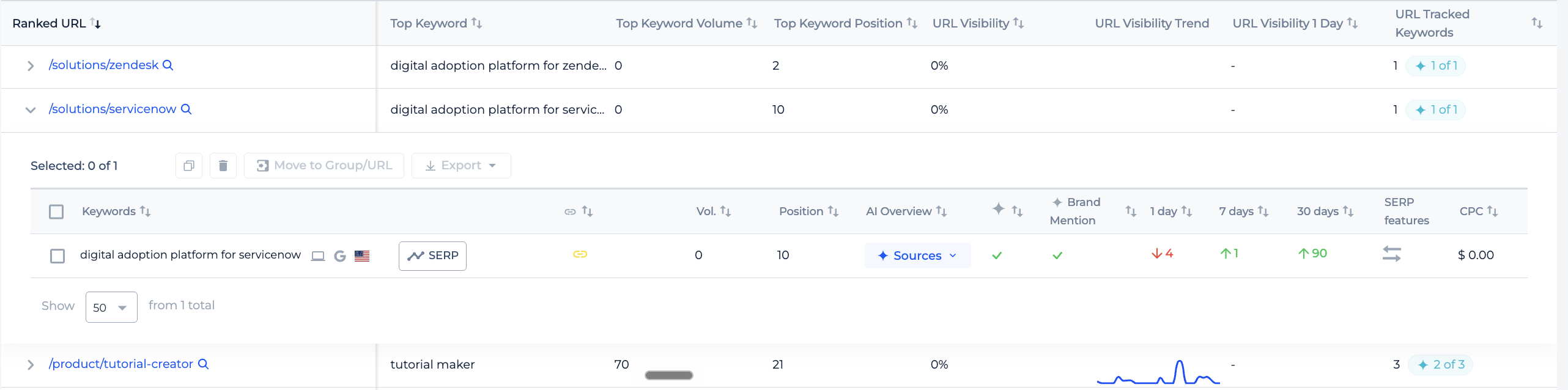
Keywords inside a page
Click the arrow next to a page to see its keywords. They appear in the same format as on the Keywords tab, including the AI Overview and Your Mention in AI Overview columns.
Select keywords with the checkboxes to move them to another group or target URL, copy them, export them or delete them.
How to use it in practice
Sort by URL Visibility to find the pages that bring most of your search traffic. Keep them up to date and watch their trend.
Sort by URL Tracked Keywords and look at pages with many keywords but a low average position. A content update there can lift many keywords at once.
Check the Group column. If one page ranks for keywords from different groups, your keyword groups or your site structure may need a review.
Use the 7 and 30 days changes after you update a page to see the effect.
Frequently asked questions
What does the Pages tab in Sitechecker Rank Tracker show? It groups tracked keywords by the page of your site that ranks for them and shows visibility, tracked keywords, volume, average position and top keyword for each page.
How is URL Visibility calculated? URL Visibility uses the same formula as keyword visibility, but only for the keywords the page ranks for.
Why is a keyword missing from the Pages tab? The Pages tab shows only keywords where your site ranks in the top 100. Keywords without a ranking page appear only on the Keywords tab.
What does the number next to the group mean? It shows how many other groups the page's keywords belong to. Hover over it to see all groups.
What does a label like "15 of 34" mean? It shows that 15 of the 34 tracked keywords of this page show a Google AI Overview.
Need help?
If you have questions about the Pages tab, write to us at support@sitechecker.pro. We are happy to help.