
How to use Keywords tab in Rank Tracker
The Keywords tab in Sitechecker Rank Tracker shows every keyword you track in one table, with its daily position, ranking page, search volume and changes over time.
From here, you can check the search results for any keyword, see which keywords trigger a Google AI Overview, and manage your keywords without opening the setup.

What you can do with the Keywords tab
- See the current position and position changes for every tracked keyword.
- Check which page of your site ranks and whether it matches your target page.
- Open the top search results for any keyword and see how they changed.
- See which keywords show a Google AI Overview and whether your site is cited in it.
- Compare search volume, CPC, KGR and Search Console data in one table.
- Move, copy, export or delete keywords in a few clicks.
Charts
Three small charts sit above the table: Rankings, Visibility and Competitors. Click one to open it in full size.
The Rankings chart shows how many keywords are in each position range every day.
The Visibility chart shows your visibility score over time. Visibility is the share of possible search traffic your site gets from its top 10 positions. Position 1 counts fully, position 10 counts for a tenth, and positions below 10 do not count. Each keyword is weighted by its search volume.
The Competitors chart compares your visibility with your competitors. The Competitors article covers it in detail.

All charts mark Google updates, the dates you added keywords, your notes and data collection issues. Click the arrow icon to hide or show the charts.
Filters
Use the date picker to choose the period. Positions and changes follow the last day you pick.
The filters above the table help you focus on part of your keywords:
- Search keywords: find keywords by text.
- Devices, Countries, Locations and Languages: focus on one market or device.
- Volume: set a search volume range.
- Rankings: set a position range, for example top 10.
- Groups: show one or several keyword groups.
- Target URLs: filter by target page with rules like contains or doesn't contain.
- SERP features: show keywords with certain features in the results.
- AI Overview: show keywords with or without a Google AI Overview.
Keywords table
The table shows one row per keyword and tracking setting. Keyword, the SERP button and the icon that compares your target and ranking pages always stay on the left.
The main columns are:
- Search engine: the search engine, country or location and device for this row.
- Position: your position on the last day you selected.
- Position changes: the difference with 1, 7, 30 and 90 days ago, since the keyword was added (All time), or between the first and last day you selected (Compare).
- URL: the page of your site that ranks. It is empty if your site is not in the top 100.
- Target URL: the page you want to rank for the keyword.
- Group: the group the keyword belongs to.
- Trend: a small chart of the position. Click the magnifier icon to open a larger chart.
- Volume: the average monthly searches over the last 12 months.
- Search Volume Trend: a small chart of search volume over the last 12 months.
- CPC: the average cost per click in Google Ads.
- Ads Competition: how many advertisers compete for the keyword.
- Potential Rank: volume divided by position. It helps you find keywords with high value and a real chance to grow.
- SERP features: the features in the results, such as featured snippets or videos.
- AI Overview and Your Mention in AI Overview: whether the results show an AI Overview and whether your site is cited in it.
- Allintitle: how many pages have all words of the keyword in their title, updated every 30 days.
- KGR: Keyword Golden Ratio, Allintitle divided by monthly volume. A low KGR points to a keyword with weak competition.
- Impressions, Clicks, Position and CTR GSC: Google Search Console data for the last 30 days, if Search Console is connected.
- Created and Updated: when the keyword was added and when its position was last updated.
Use Manage Columns to show, hide, move and pin columns. Sitechecker remembers your choice.

AI Overview Analysis
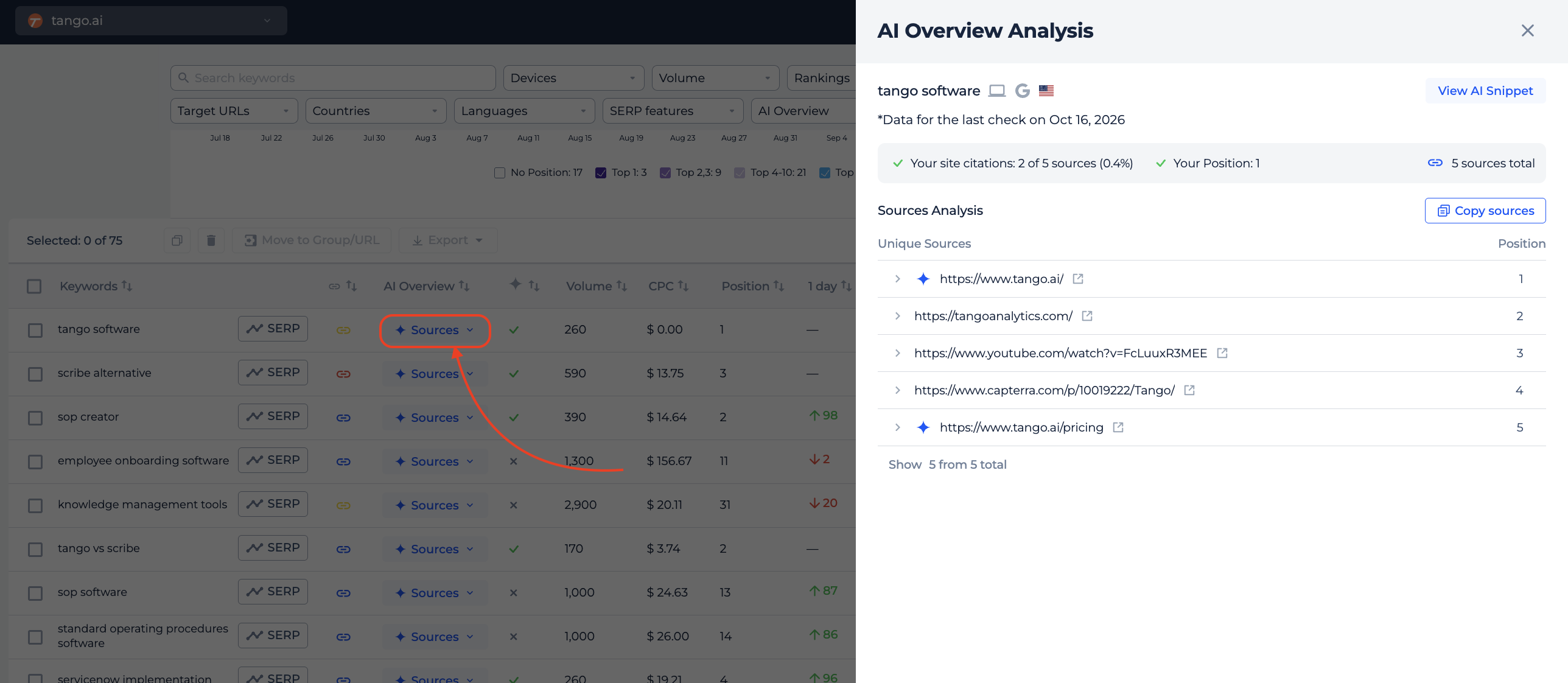
Click Sources in the AI Overview column to open AI Overview Analysis.
It shows whether your site is cited, how many times, and the share of all sources that point to you. Below, you see every source in the order it appears in the AI Overview. Your pages are highlighted in blue.
Click View AI Snippet to read the AI Overview text, with the sources under each block. Click Copy Sources to copy all URLs.
Keyword SERP statistics
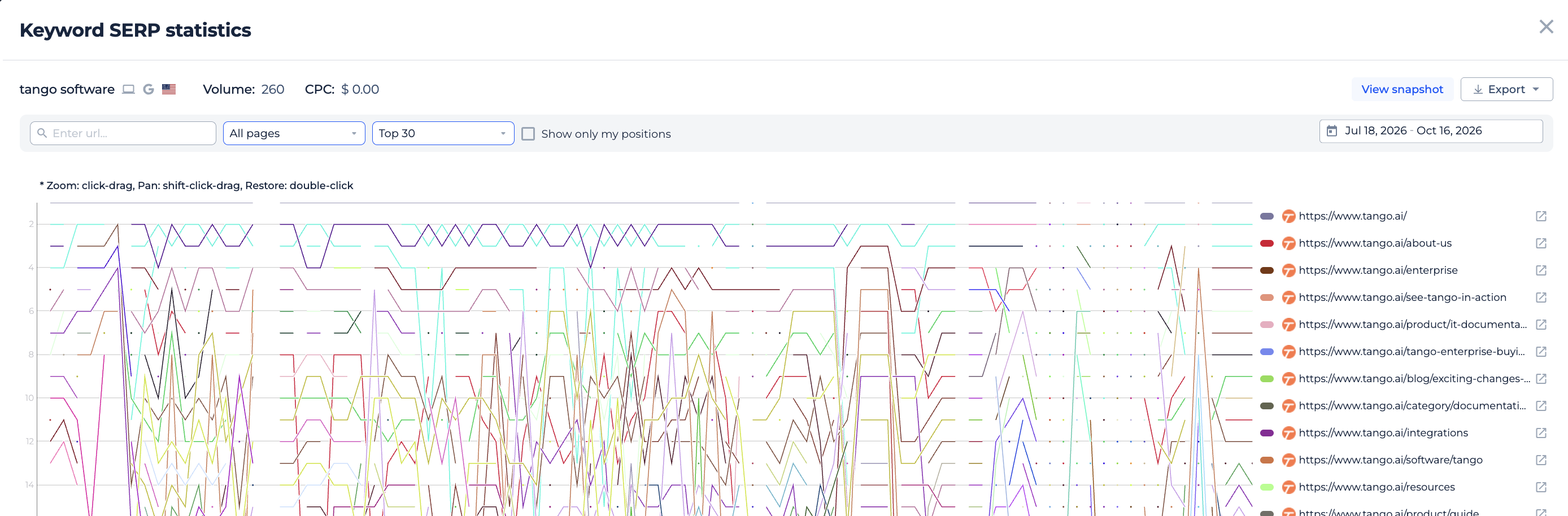
Click SERP on any keyword to open Keyword SERP statistics.
The top of the window shows the keyword, its tracking settings, volume and CPC. The chart shows how the top results moved over the dates you selected in Rank Tracker. Google updates are marked on it.
By default, the chart shows the top 30 results for all sites. Select Show only my positions to see your own line only. Open a snapshot to see the full results for a given day.
Click Export to download the URLs and their positions to CSV or Google Sheets.
Managing keywords
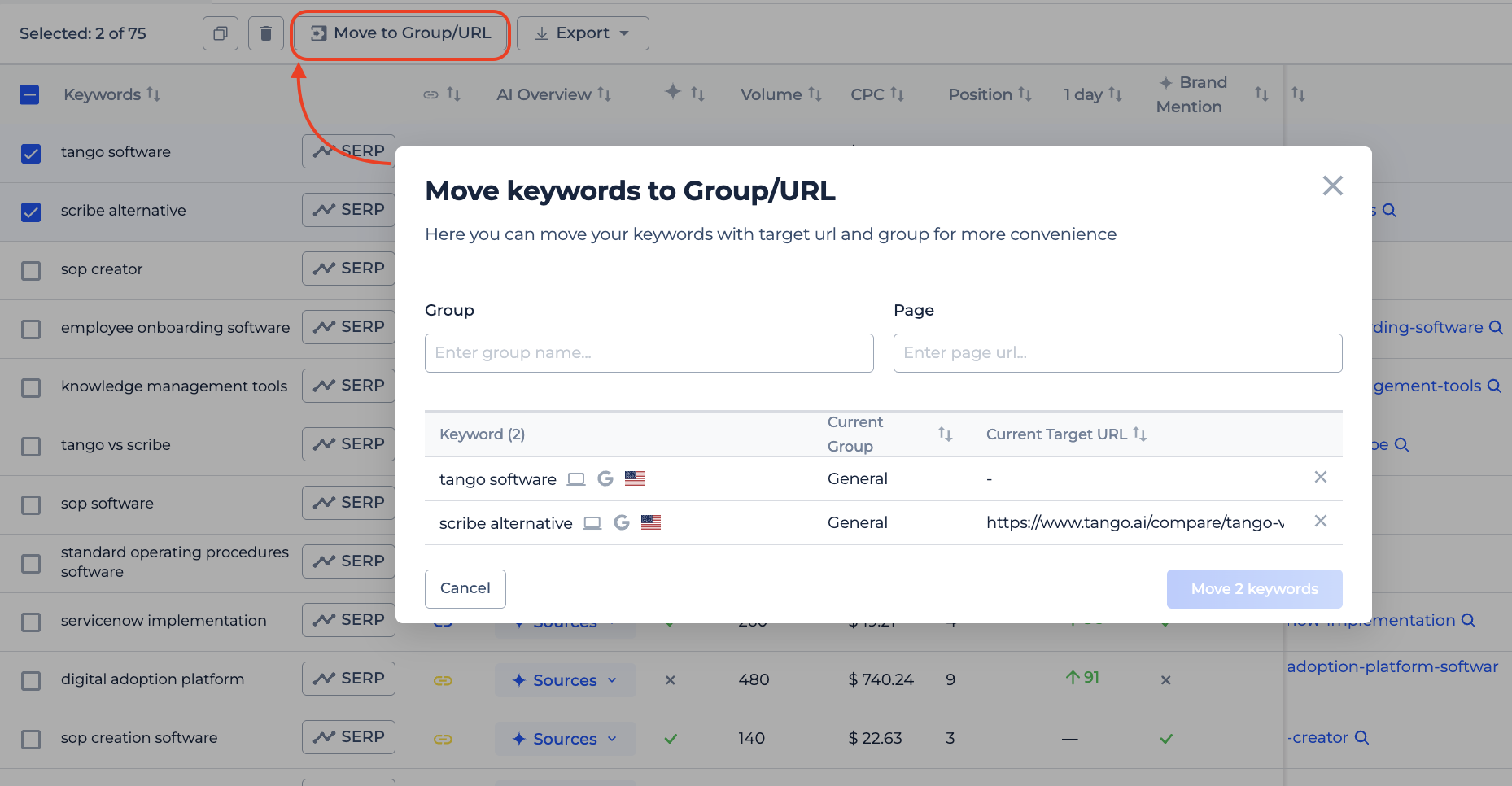
Select keywords with the checkboxes. The actions above the table show how many keywords you selected.
- Move to Group/URL: change the group or target URL for the selected keywords.
- Copy: copy the selected keywords.
- Export: download the selected keywords to CSV or Google Sheets.
- Delete: stop tracking the selected keywords.
To add keywords, click Add in the Rank Tracker header.
How to use it in practice
- Sort by Potential Rank to find keywords with high volume where you rank on page 2 or 3. These are often the fastest wins.
- Check the icon next to each keyword. If the ranking page differs from your target page, two pages may compete for the same keyword.
- Filter by AI Overview: With Overview and look at Your Mention. Keywords where you rank well but are not cited show where to improve your content for AI answers.
- Use the 7 and 30 days columns after each content update to see whether positions move.
Frequently asked questions
What does the Keywords tab in Sitechecker Rank Tracker show? It shows every tracked keyword with its daily position, position changes, ranking page, search volume, SERP features, AI Overview data and Search Console data.
What is Potential Rank? Potential Rank is search volume divided by position. It helps you find keywords that bring value and have a real chance to grow.
How is Visibility calculated? Each top 10 position gets a score from 1 for position 1 to 0.1 for position 10. Positions below 10 score zero. Sitechecker weights each score by search volume and shows the result as a percentage.
Why is the URL column empty for some keywords? The URL column is empty when your site is not in the top 100 results for the keyword.
What does the icon next to the keyword mean? It shows whether the page that ranks matches the target URL you set for the keyword.
Can I see the full search results for a keyword? Yes. Click SERP next to the keyword to see the top results, how they changed, and a snapshot for any day.
Why don't I see Search Console data? Search Console data appears only when Google Search Console is connected to your project, and only for keywords tracked in Google.
Need help?
If you have questions about the Keywords tab, write to us at support@sitechecker.pro. We are happy to help.