
How to use Competitors tab in Rank Tracker
The Competitors tab in Sitechecker Rank Tracker compares your visibility with your competitors for the keywords you track.
It shows who ranks higher, how visibility changes over time, and how each competitor ranks for every keyword. Your own domain appears in the same list, marked as owner.

What you can do with the Competitors tab
- Compare your visibility with your competitors on one chart.
- See how many keywords each competitor has in the top 1, top 3, top 10 and lower.
- Check the position of each competitor for every tracked keyword.
- Find keywords where competitors rank and you do not.
- Open the search results for any keyword from the same table.
How it works
Rank Tracker tracks competitors on your own keywords. It does not need a separate keyword list.
When it checks the results for a keyword, it also saves the positions of your competitors. Their visibility uses the same formula as yours, so you can compare them directly.
Adding competitors
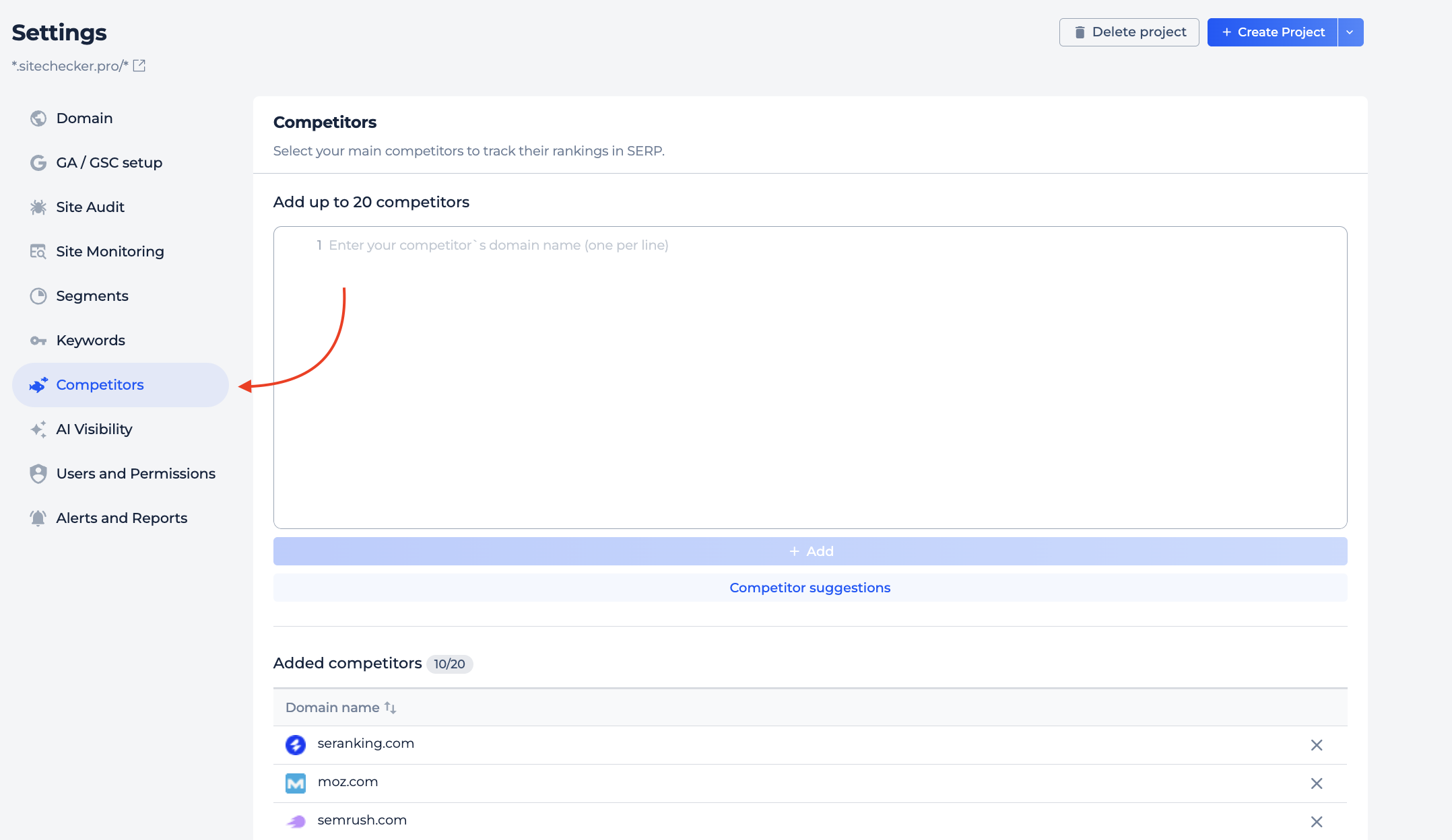
- Open your project settings and go to Competitors.
-
Sitechecker suggests competitors based on your keywords.
For each suggestion, you see Keyword Intersect, Estimated Monthly Traffic and Visibility. You can pick from the suggestions or add any domain by hand.
- When you add keywords in a project, Sitechecker can set up your top competitors for you. You can change them at any time.
- If your plan does not include competitor tracking, the tab shows an upgrade screen. You can see the limits for each plan on the pricing page.
Competitors chart
The Competitors chart opens by default on this tab. It shows the visibility of your domain and each competitor over the dates you selected.
You can switch the chart to another metric. Google updates, the dates you added keywords and your notes are marked on it.
If there is no competitor data, the chart shows a message with a button to open the competitor settings.
Domains table
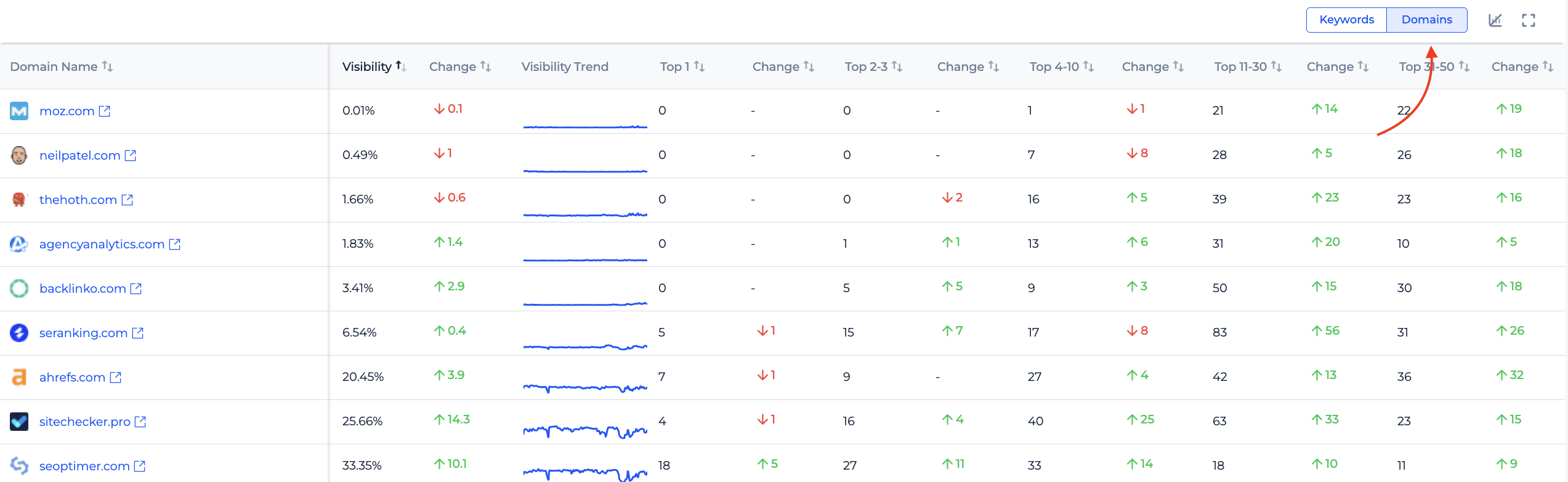
The Domains table shows one row per domain, including yours. The columns are:
- Visibility: the visibility of the domain for your tracked keywords.
- Top 1, Top 2-3, Top 4-10, Top 11-30, Top 31-50 and Top 51-100: how many keywords the domain has in each position range.
- No position: how many keywords the domain does not rank for in the top 100.
Keywords table
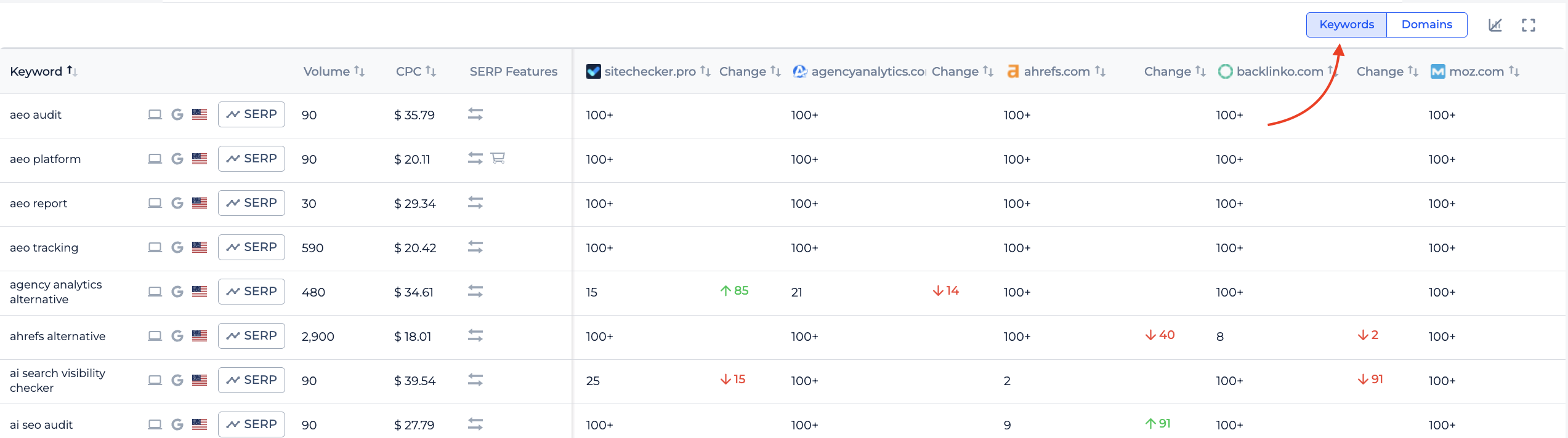
The Keywords table shows one row per tracked keyword, with the position of each domain in a separate column.
You also see the search engine settings, volume, CPC and SERP features for every keyword. Click SERP to open Keyword SERP statistics and see the full results.
Use the Keywords and Domains switch to move between the two tables. Use Manage Columns to show or hide columns in each table.
Filters
The date picker and filters work the same way as on the Keywords tab. When you filter keywords, competitor data follows the same filter.
For example, filter by one group to see who leads for that topic only.
How to use it in practice
- Start with the Domains table. Compare your Visibility and Top 4-10 counts with the leader. The gap shows how far you are behind.
- Then open the Keywords table and sort by a competitor's column. Look for keywords where they rank in the top 10 and you do not.
- Filter by group to see which topics each competitor owns. This helps you choose what to work on next.
- To find the sites where competitors get listed or mentioned, use the SERP opportunities tab.
Frequently asked questions
What does the Competitors tab in Sitechecker Rank Tracker show? It compares your visibility with your competitors for your tracked keywords and shows each domain's positions by keyword and by position range.
Do I need separate keywords to track competitors? No. Rank Tracker tracks competitors on the same keywords you track for your own site.
How is competitor visibility calculated? Competitor visibility uses the same formula as your own visibility, so you can compare them directly.
Where do competitor suggestions come from? Sitechecker suggests domains that rank for the same keywords as you, sorted by how many keywords you share.
Why is my own domain in the list? Your domain is shown as owner so you can compare yourself with competitors on one chart and in one table.
Why does the Competitors tab show no data? Either no competitors are added to the project, or Rank Tracker has not collected their positions yet. Use the button on the screen to open the competitor settings.
Need help?
If you have questions about the Competitors tab, write to us at support@sitechecker.pro. We are happy to help.