
How to connect Sitechecker MCP to Claude, ChatGPT and Codex
Sitechecker MCP is a hosted server that connects AI assistants to your Sitechecker projects. Once connected, you can ask Claude, ChatGPT or Codex about your audits, rankings, Search Console, GA4 and AI visibility data in plain language, and get answers with real numbers.
What you can do with Sitechecker MCP
- Ask about Site Audit and Site Monitoring results without opening reports.
- Check tracked keyword positions, competitors and SERP snapshots from Rank Tracker.
- Query Google Search Console and GA4 data from your connected project.
- See brand mentions, citations, Google AI Overview data and AI traffic.
- Combine several sources in one answer, for example GSC clicks next to tracked positions.
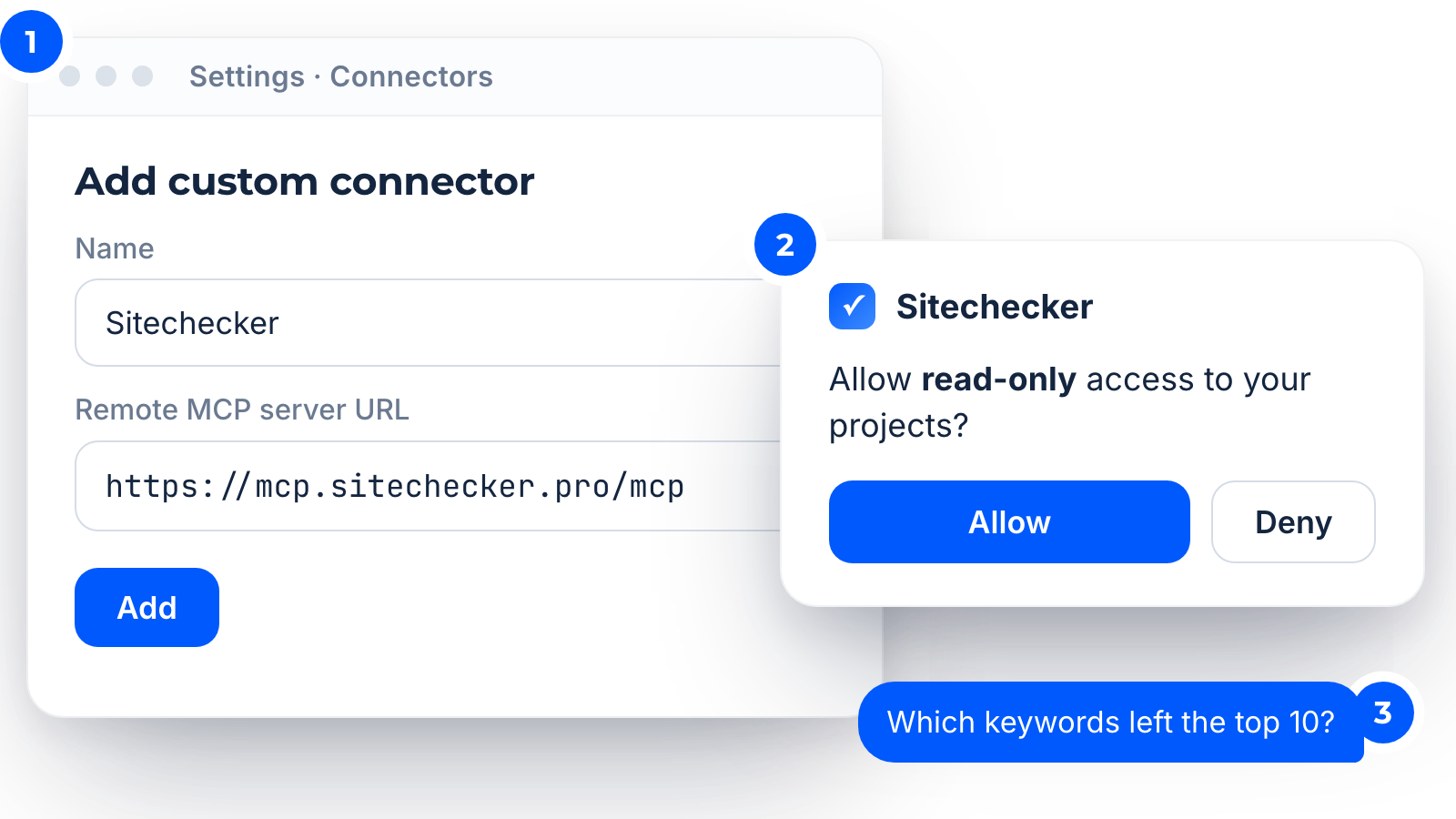
All Sitechecker MCP tools are read-only. The assistant can read data from the projects your Sitechecker account can access, but it cannot create, edit or delete anything. You do not need an API key, a local install or a Google Cloud project.
Before you start
- Use the Sitechecker account that has access to the projects you want to ask about.
- Connect Google Search Console and GA4 to your project if you want to ask about that data. See Connecting GA and GSC.
- Keep the server URL at hand: https://mcp.sitechecker.pro/mcp
Connect Claude (web and desktop)
- In Claude, open Customize > Connectors.
- Click + Add, then Add custom connector.
- Enter Sitechecker as the name and https://mcp.sitechecker.pro/mcp as the server URL, then click Continue.
- Under Authentication, choose Sign in now. Keep the default OAuth client and leave request headers empty.
- Click Add, sign in to Sitechecker and approve access.
On Team and Enterprise plans, an owner adds the connector in Organization settings > Connectors, and each member then connects it from Customize > Connectors. One connector works in Claude on the web, in Claude Desktop and in Cowork.
Connect Claude Code
Run this command in your terminal:
claude mcp add --transport http --scope user sitechecker https://mcp.sitechecker.pro/mcp
Then start Claude Code, type /mcp , select sitechecker and authenticate. Sign in to Sitechecker in the browser window that opens and approve access.
Connect ChatGPT
- Open Plugins in ChatGPT, select the plus button, then Add custom MCP server.
- Enter Sitechecker, a short description and the server URL https://mcp.sitechecker.pro/mcp.
- Choose OAuth. Do not select "No authentication" and do not enter an API key.
- Create the connection, then sign in to Sitechecker and approve access.
Your ChatGPT workspace needs access to custom MCP connections. If you do not see the option, ask your workspace admin.
Connect Codex
Run this command in your terminal:
codex mcp add sitechecker --url https://mcp.sitechecker.pro/mcp
Open the authorization link Codex shows, sign in to Sitechecker and approve access. If authorization does not start, run codex mcp login sitechecker .
Test the connection
Start a new chat and ask:
- List my Sitechecker projects and their IDs.
- For project [name], how did organic clicks change last month?
The assistant shows which Sitechecker tool it used for each answer. Detailed setup guides for every client are in the Sitechecker MCP documentation.
What you can ask about
- Search Console: see How to use Search Console data in Sitechecker MCP.
- GA4: see How to use GA4 data in Sitechecker MCP.
- AI Visibility: see How to use AI Visibility data in Sitechecker MCP.
- Site Audit and Site Monitoring: see How to use Site Audit data in Sitechecker MCP.
- Rank Tracker: ask for positions, movement, competitors, ranking pages, groups, daily positions for a keyword or a top 100 SERP snapshot.
For an overview of the product, see the SEO MCP server page.
Frequently asked questions
What is Sitechecker MCP? Sitechecker MCP is a remote Model Context Protocol server hosted by Sitechecker. It gives AI assistants read-only access to the data in your Sitechecker projects, so they can answer SEO questions with real numbers.
Which AI assistants can I connect? Sitechecker has setup steps for Claude on the web and desktop, Claude Code, ChatGPT and Codex. Other clients that support remote MCP servers with OAuth can use the same URL.
Do I need an API key? No. Sitechecker MCP uses OAuth sign-in. You sign in to your Sitechecker account and approve access, and no key is stored in your chat.
Which Sitechecker plans include the MCP? Sitechecker MCP is available on all plans: Basic, Standard, Premium and Custom. Access is unlimited, with no monthly cap on tool calls. Each connection can make up to 10 tool calls per second.
Can the assistant change my projects? No. All Sitechecker MCP tools are read-only. The assistant cannot create, edit or delete projects, settings or data.
How is the MCP different from the API? The MCP lets you ask questions in an AI assistant. The Sitechecker API returns the same data as JSON for scripts, dashboards and automations.
Need help?
If you have questions about Sitechecker MCP, write to us at support@sitechecker.pro. We are happy to help.