
How to use Search Console data in Sitechecker MCP
Sitechecker MCP lets your AI assistant read the Google Search Console data connected to your Sitechecker project. You ask in plain language, and the assistant answers with clicks, impressions, positions and keywords from GSC Insights.
What you can ask about
- Clicks, impressions, CTR and average position for any period, with the previous period next to it.
- Top pages and keywords, plus their history over time.
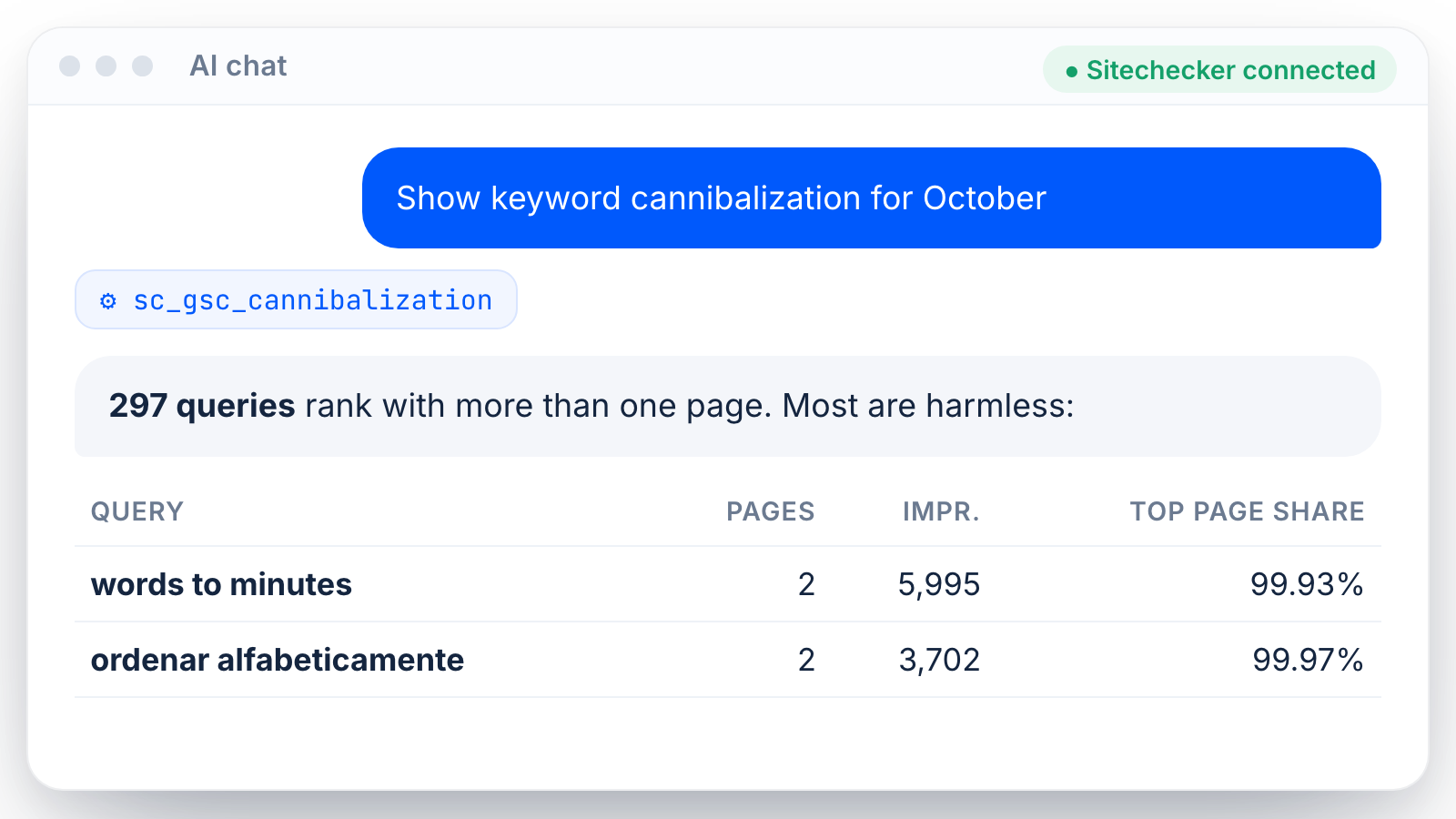
- Keyword cannibalization and keyword gap between pages.
- New and lost keywords, new and lost pages and last found pages.
- Page segments and brand versus non-brand traffic.
- Search Conversion: GSC clicks next to Google organic GA4 sessions and key events.
Before you start
- Connect Sitechecker MCP to your AI assistant. See How to connect Sitechecker MCP.
- Connect Google Search Console to your Sitechecker project. See Connecting GA and GSC.
The MCP uses the GSC connection you already have in Sitechecker. You do not need a Google Cloud project or Search Console API credentials.
Prompts to try
- How did organic clicks and impressions change last month compared with the month before?
- Which pages lost the most clicks in the last 28 days?
- Show keyword cannibalization for October and tell me which cases need fixing.
- Which pages rank on positions 11 to 20 with the most impressions?
- List new and lost keywords for the blog segment this month.
- Compare brand and non-brand clicks for the last quarter.
Reports the assistant can use
The assistant picks the right report for each question. These are the same reports you see in GSC Insights:
- Performance: totals and history for clicks, impressions, CTR and position. See Overview report.
- Pages and keywords: lists with filters by country, device and segment, plus history for one page or keyword.
- Cannibalization: queries where several pages compete. See Cannibalization report.
- Keyword gap: keywords a page gets impressions for but does not cover well. See Keyword Gap report.
- New and lost: keywords and pages that appeared or disappeared. See New & Lost Keywords.
- Page segments: compare groups of pages. See Page Segments report.
- Search Conversion: GSC acquisition with GA4 behavior for a page or segment. See Search Conversion report.
Tips for better answers
- Name the project and the date range in your question.
- Ask for a comparison period if you want changes, for example "versus the previous 28 days".
- Use segment names from your project, such as "blog" or "product pages", to narrow the answer.
- Keep GSC clicks and GA4 sessions apart. They measure different things and rarely match.
For an overview of the product, see the Google Search Console MCP page.
Frequently asked questions
Do I need Google Cloud or API credentials? No. Sitechecker MCP uses the Search Console connection in your Sitechecker project. You only sign in to Sitechecker when you connect the MCP.
How fresh is the Search Console data? The data is as fresh as GSC Insights in your project. Google Search Console data usually arrives with a delay of two to three days.
Can I ask about GSC and GA4 in one question? Yes. Search Conversion reports join GSC clicks and impressions with Google organic GA4 sessions and key events, and the assistant can also combine separate answers.
Which Sitechecker plans include the MCP? Sitechecker MCP is available on all plans: Basic, Standard, Premium and Custom. Access is unlimited, with no monthly cap on tool calls. Each connection can make up to 10 tool calls per second.
Need help?
If you have questions about Search Console data in Sitechecker MCP, write to us at support@sitechecker.pro. We are happy to help.